


Screens captured on iOS with fictional demo data.
Manage your journal
Your journal holds the accounts, plans, transactions, funds, debts and assets you record in Lite.
- Open Home and tap the Settings gear.
- Select your journal's name at the top of Settings.
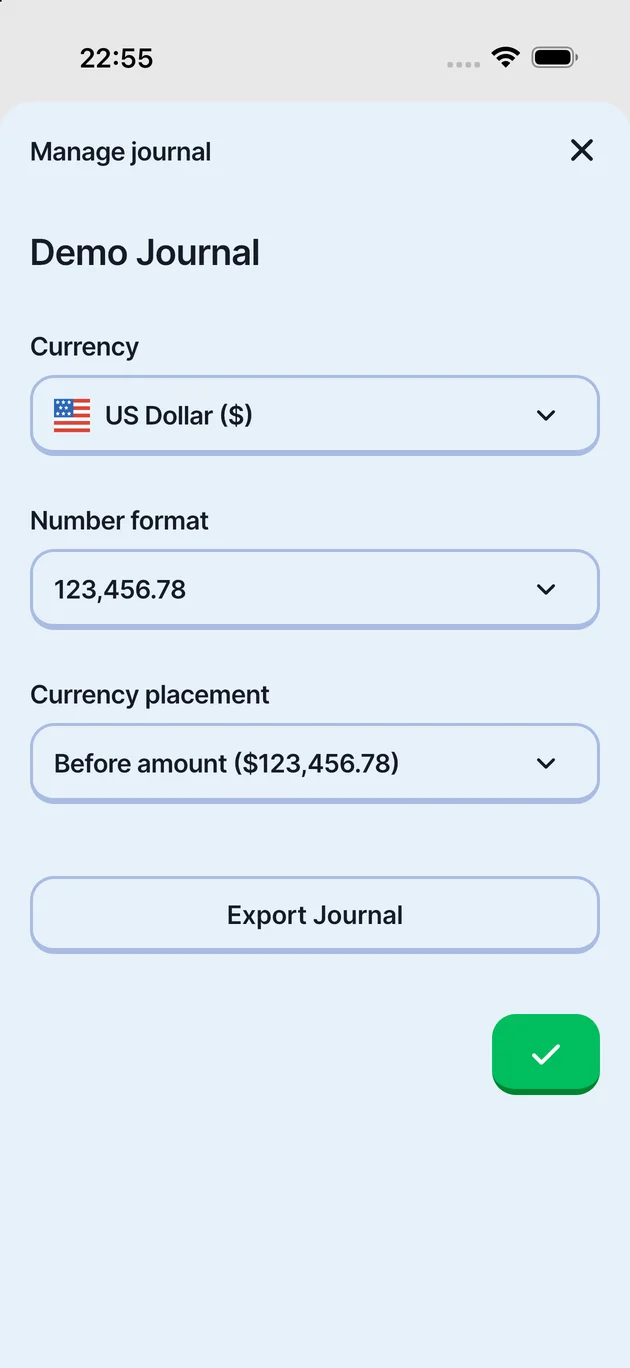
- In Manage journal, review the name, currency, number format and currency placement.
- If you edit these settings, use Save journal when you are finished.
Export and backup are separate actions. An export gives you a spreadsheet; a backup creates a file in Zhuzh's backup format.
Export a spreadsheet
- In Manage journal, select Export Journal.
- Check that the journal shown is the one you want to export.
- Select From and To to choose the first and last month.
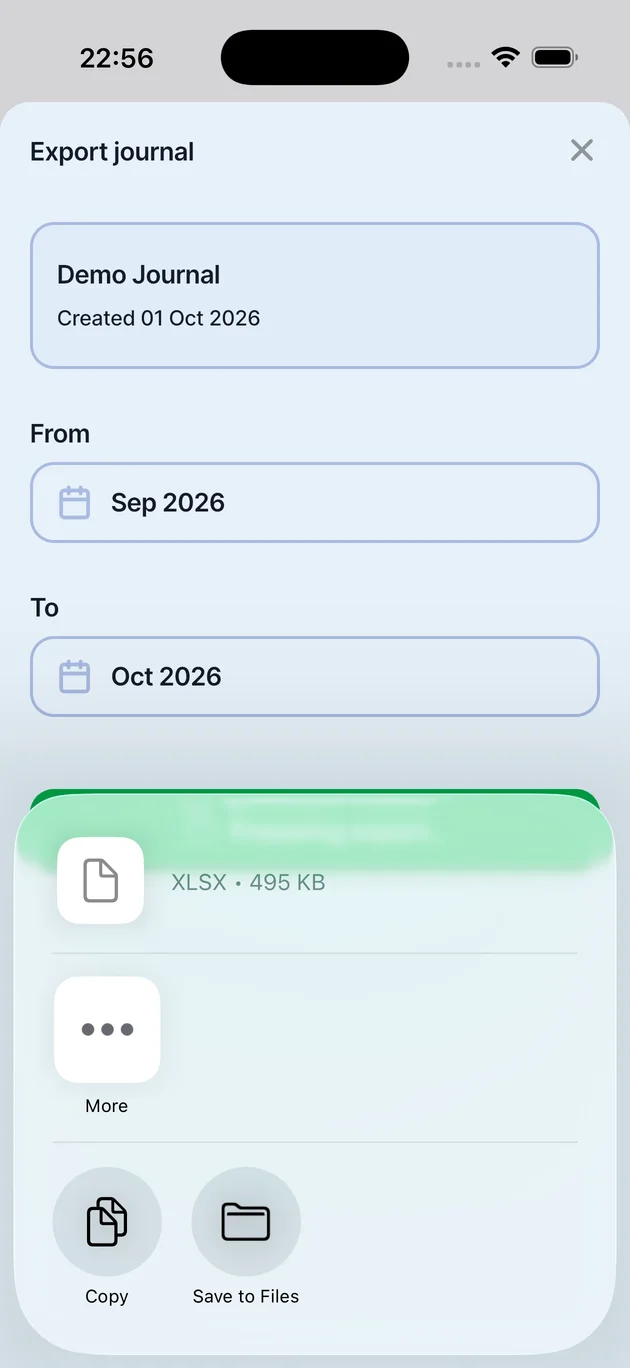
- Tap Export and wait for the file's share options to appear.
- On iOS, choose Save to Files, select a location and tap Save.
For one month, set From and To to the same month. The example uses October 2026 for both.
The result is an .xlsx workbook. Its filename includes the selected months, such as Zhuzhjournal-2026-10-to-2026-10.xlsx.
Use the exported sheet
Open the saved .xlsx file in a spreadsheet app that supports Excel workbooks. The journal export contains Quick Start, Dashboard, Books, Plans, Watch and Portfolio tabs.
This gives you a sheet version of the journal data at the time of export. It is not a live connection back to Lite: edits in the spreadsheet do not automatically update the app. Export again when you want a fresh copy.
The Complete Cash Flow Sheet guide explains the planner's tabs and calculated cells. Your journal export is already populated with your own data, unlike a fresh template.
Keep the .xlsx export and your .zhuzhbackup file separate. A spreadsheet export is not a replacement for a journal backup.
Create a backup
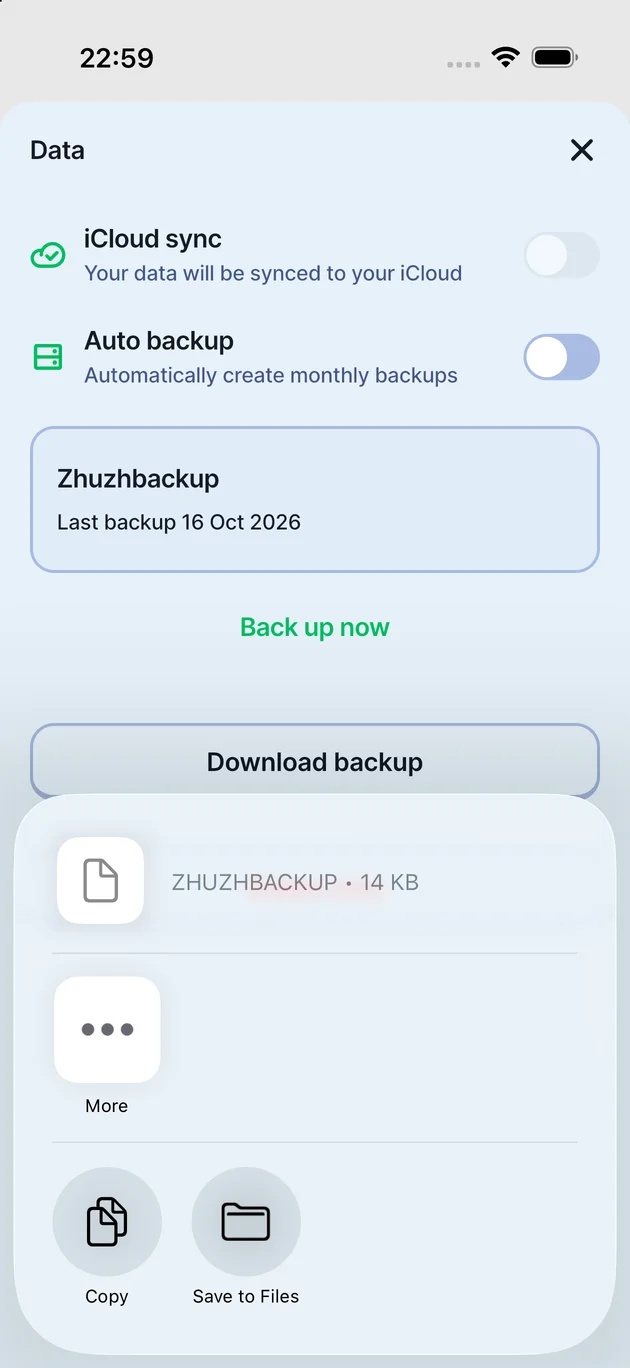
- Return to Settings and select Data.
- Tap Back up now.
- Wait for the Zhuzhbackup card to show the backup's creation details.
- Check that Download backup is available.
Before the first backup is created, Download backup is inactive. Back up now creates or refreshes the backup shown on this screen.
The backup contains journal records and journal preferences. It is a separate .zhuzhbackup file, not the .xlsx spreadsheet from Export Journal.
Save your backup outside Lite
- In Settings, then Data, select Download backup.
- On iOS, choose Save to Files.
- Choose a destination you can find again, then tap Save.
- Open that location in Files and check that the .zhuzhbackup file is there.
Keep the original file extension. The download is a backup file for your journal, not a spreadsheet to edit.
On My iPhone saves outside Lite but still on the same phone. To protect against losing that phone, keep an additional copy in another trusted location.
Monthly backups
Auto backup is an optional switch in Settings, then Data. Turn it on to enable the app's monthly backup setting. You can still use Back up now before an important change.
Check the latest backup's creation details and download a copy when needed. Creating a backup inside Lite is not the same as keeping a copy outside the app.
The iCloud sync control is disabled in the Lite version shown here. Do not rely on it as confirmation that your journal or backup is available on another device.
Keep your copies safe
- Keep both exports and backups private; they contain your financial information.
- Make and save a recent backup before uninstalling Lite, changing devices or deleting app data.
- Check the destination and filename after saving, rather than stopping at the share sheet.
- Do not use Delete data to export, back up or start a new month. It is a removal action.
For accounts, planning and everyday entries, return to the Zhuzhfinance Lite guide.