

Simpler transactions, richer notifications and new friends
Enter transactions in different currencies with automatic exchange rates, get timely reminders and meet Tobi, Finn, Mei and Mira.
 Zhuzhfinance Lite
We've updated the transaction flow in Zhuzhfinance Lite so you can start with the amount, then add the details. Whether you're recording groceries, setting money aside or updating an asset's value, each entry starts in the same place.
We've also added richer notifications, including setup reminders that help you build your first monthly plan. They connect to what you're tracking, with prompts to review your progress and keep your journal current.
And Zhuzh has company. Tobi, Finn, Mei and Mira now join you around Lite, with animated moments as you set things up and use your journal.
Start with the amount
- iOS
- Android
Tap the green calculator button to start a transaction. Enter the amount, choose the transaction type and continue to the details. The calculator is there when you need to work out a total before recording it.
Income and Expense are available straight away. Open Others for Savings, Debt payment, Investment, Transfer or Value. Choose the relevant item where needed, then check the account, fund, debt or asset, set the date and add an optional note.
Tap Record to save and close. If you have more entries to add, press and hold Record to save and start another entry of the same type, with a fresh amount. Your saved entries are ready to review in Books.
Transactions in other currencies
- iOS
- Android
Tap the flag in New transaction and choose the currency on your receipt. Lite shows the equivalent in your journal currency before you save. In the first recording, a £100 grocery purchase appears in Books as $125 at the example rate of £1 = $1.25.
Lite refreshes exchange rates automatically when you’re online. Offline, you can still record an entry using the last saved rate, or a built-in rate if one hasn’t synced yet.
If your bank used a different rate, tap the rate beside the currency in the picker, enter your rate and tap Save. Lite uses it for future transactions with that pair. Other pairs keep syncing. To resume automatic updates for the pair you edited, open its rate again and choose Reset to default.
Repeat, schedule and review
- iOS
- Android
For entries that happen regularly, choose a repeat schedule in the transaction details. You can also set a future date and find upcoming entries under Scheduled transactions in Books.
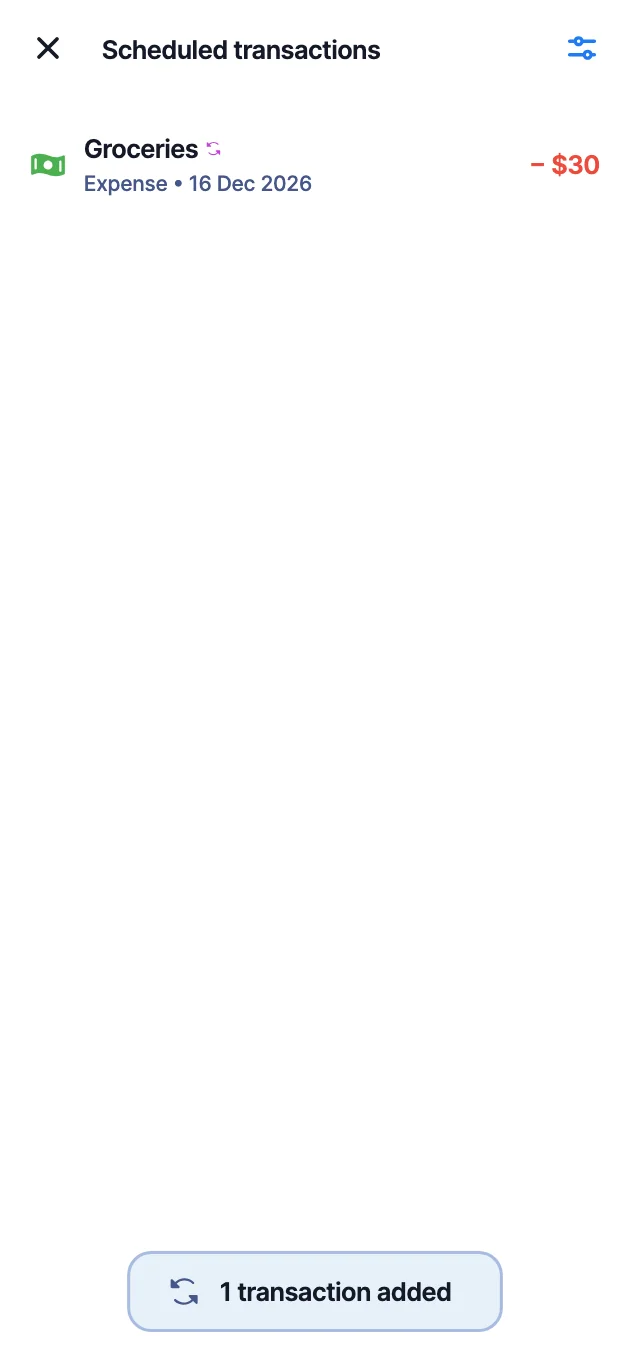
These schedules add entries to your journal; they do not make payments. When something changes, open the recorded entry in Books to edit its details or delete it.
Reminders for the money you're tracking
- iOS
- Android
A new month brings a reminder to make your plan. When your journal has enough history, monthly cashflow and net worth notifications also help you look back at the month that just ended, with a link to the relevant report.
Mid-month reminders help you review fund contributions and debt payments when your monthly targets are still unmet. If spending goes over a plan allocation, an alert takes you back to Plan to review it and make adjustments.
Other reminders help with the upkeep: add recent transactions after three days without a manual entry, update an asset value after three months, or save a backup when it's time to keep another copy of your records.
To receive phone notifications, turn on Notifications in Settings and allow them in your device settings. You can turn them off whenever you like.
A little help setting up your plan
- iOS
- Android
Getting started takes a few small steps. During your first 21 days with Lite, setup reminders help you add accounts, assets, funds and debts, then plan your income, expenses, debt payments, savings and investments.
The reminders adapt to the steps you still have to finish. Steps you've already completed or skipped are left out, and tapping a reminder opens the relevant part of Portfolio, Watch or the current month's Plan.
Quick Start remains available for you to work through at your own pace. Completing or dismissing it ends the setup reminders.
Meet Zhuzh and friends
- iOS
- Android
Zhuzh is joined by Tobi, Finn, Mei and Mira. You'll meet them during setup and around the app, each with their own place in your money journal.
Tobi brings his calendar to your monthly plan setup. Finn and his vault join you as you add accounts and assets in Portfolio. Mei keeps you company while you set up your journal and when Books is waiting for entries. Mira appears with your funds and debts in Watch.
Look out for the small animated moments: Mei glancing up from her journal, Tobi pointing out dates, Finn looking inside his vault and Mira giving you a wave. They also join you to celebrate finishing setup.